How to Place Your First Order
Welcome — here's how to place your first order
This guide is for new B2B customers who just got their portal account. The whole flow takes ~5 minutes the first time, much less after that.
Step 1 — Log in
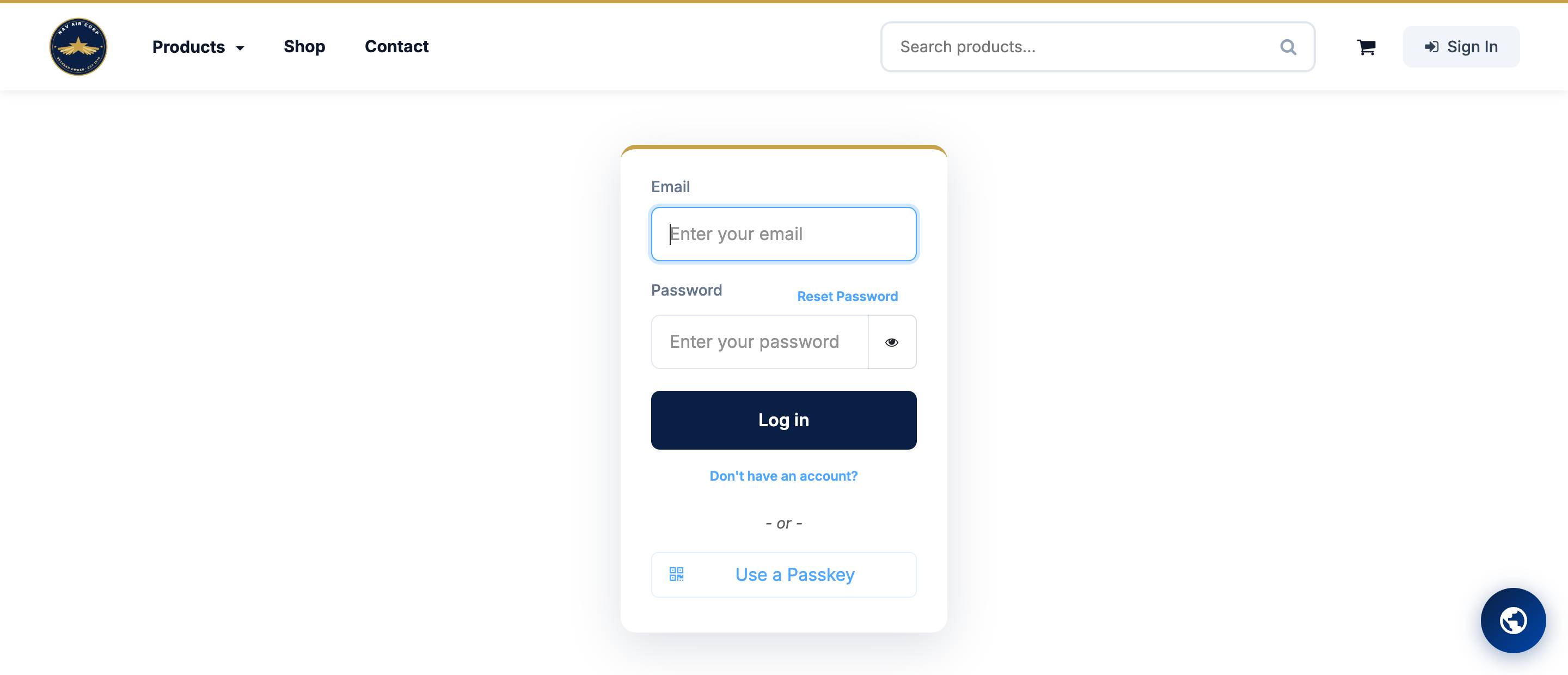
Go to navaircorp.com/shop and click Sign In (top right). Enter the email and password your account manager sent you. If you didn't get a setup email, check spam first — if still nothing, email [email protected].
Step 2 — Find products
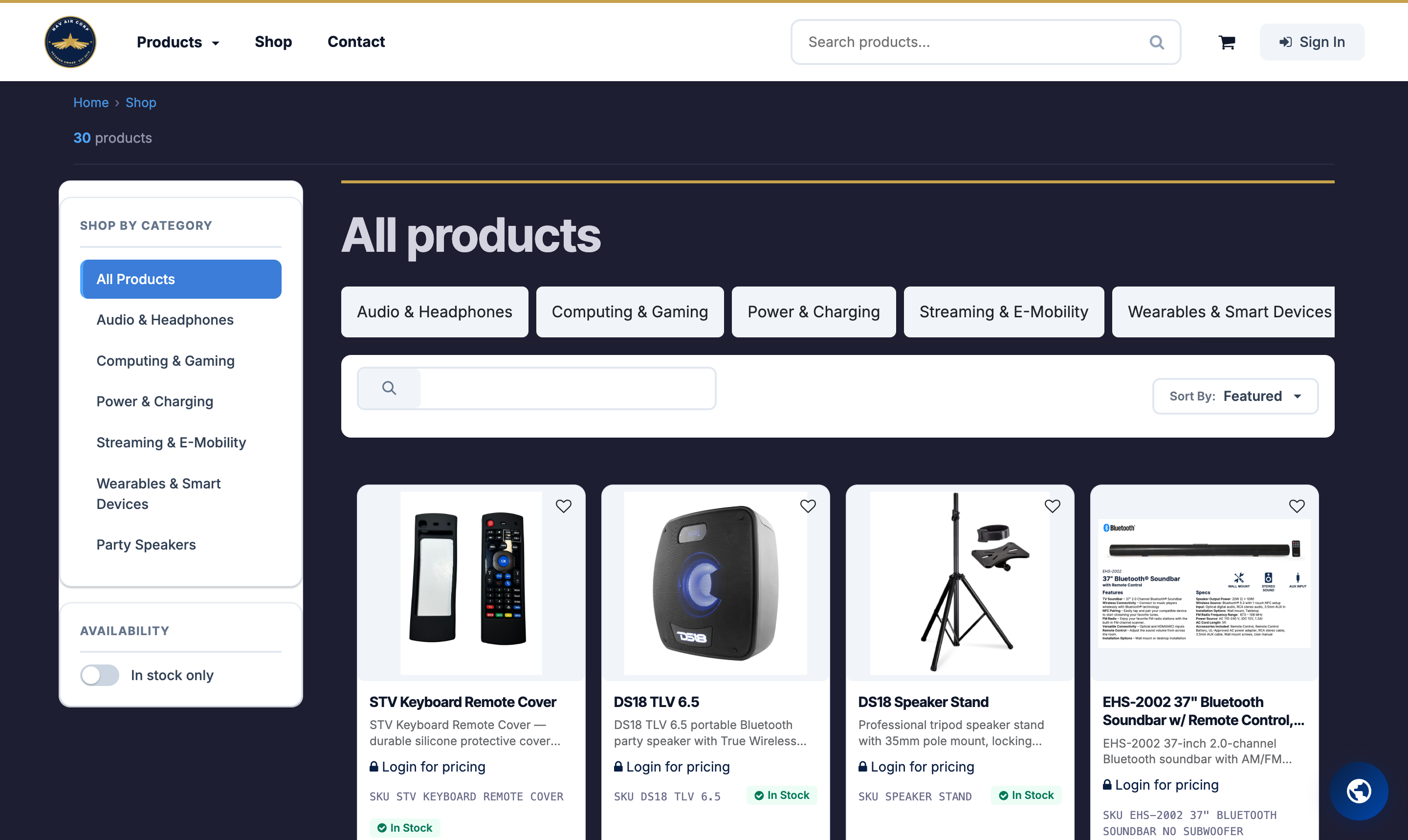
Once logged in, you'll see your Account Dashboard. To start an order, click Shop Products (or use the Quick Order link in the navbar if you already have SKUs).
Three ways to find what you need:
- Search — the box at the top of every page matches name and SKU.
- Categories — browse by category in the left sidebar.
- Quick Order — if you know the SKUs, paste them in (one per line, with quantities) and add to cart in one shot.
Step 3 — Add to cart
On any product page, set the quantity and click Add to Cart. The cart icon at the top right shows your current total. You'll see your wholesale price (not the public retail price) — the price that shows is the price you'll pay.
Step 4 — Checkout
Click Checkout. You'll review:
- Lines (products + quantities + prices)
- Shipping address (defaults to your account address; add a new one if needed)
- Shipping method (next-day, ground, freight, etc.)
- Your Customer PO Number — required if your company tracks POs internally
- Payment terms (Net 30 / pay now / on account, depending on your account setup)
Click Place Order. You'll see a confirmation screen with your order number (S14XXX) and an emailed receipt.
What happens next
- Nav Air receives the order instantly — it appears in your account's order history.
- Inventory is allocated automatically. If everything is in stock, fulfillment starts the same day.
- Backorders happen when one or more items are out of stock. You'll get an email; the in-stock items ship now, the rest follow when they arrive.
- Shipping confirmation — once the warehouse ships, you get an email with tracking links.
Common pitfalls
"I see a price but my account manager said I get a different one"
The portal shows the price tied to your customer tier. If you were just upgraded to a new tier, give it 5-10 minutes for the cache to refresh. Hard-refresh the cart page; if still wrong, email your account manager.
"Place Order is greyed out"
Almost always: the Customer PO Number field is required (per your account settings) and you left it blank. Scroll up and check.
"My order says backordered"
Means at least one item ran out. The in-stock items still ship; the backordered ones become a separate shipment when restocked. You're not charged extra freight for the second shipment.